Welcome to the Certified Ethical Hacking (CEH) course!
Our lab environment is meticulously designed to provide you with a comprehensive and practical learning experience. The setup includes a variety of operating systems and configurations to simulate real-world scenarios. Ethical hacking is a critical component of modern cybersecurity, focusing on identifying and addressing vulnerabilities before malicious actors can exploit them. In this lab, students will immerse themselves in real-world scenarios where they will apply various hacking techniques to test and secure systems. By simulating attacks, students will gain a deeper understanding of the methodologies used by cybercriminals, learning how to anticipate and defend against potential threats. This hands-on experience is designed to bridge the gap between theoretical knowledge and practical application, ensuring that students are well-prepared to protect digital infrastructures.
Throughout the course, students will utilize a range of tools and software commonly used in the field of ethical hacking. They will learn how to conduct penetration tests, exploit vulnerabilities, and implement robust security measures. Each lab session is structured to provide step-by-step guidance, allowing students to progressively build their skills and confidence. By the end of the course, participants will have developed a comprehensive skill set in ethical hacking, equipping them with the expertise needed to safeguard sensitive information and support their organizations in maintaining a secure cyber environment.
Available Machines
This module is intended for demonstration purposes only and does not include an interactive lab environment. To begin accessing the labs, please proceed to Module 2: Footprinting and Reconnaissance and continue with the subsequent modules.
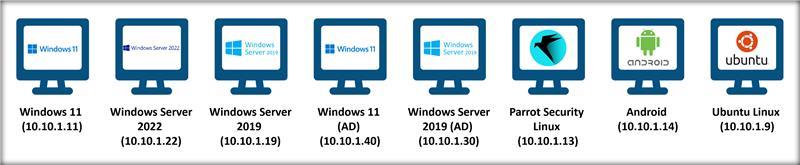
The detailed information on the machines is given below:
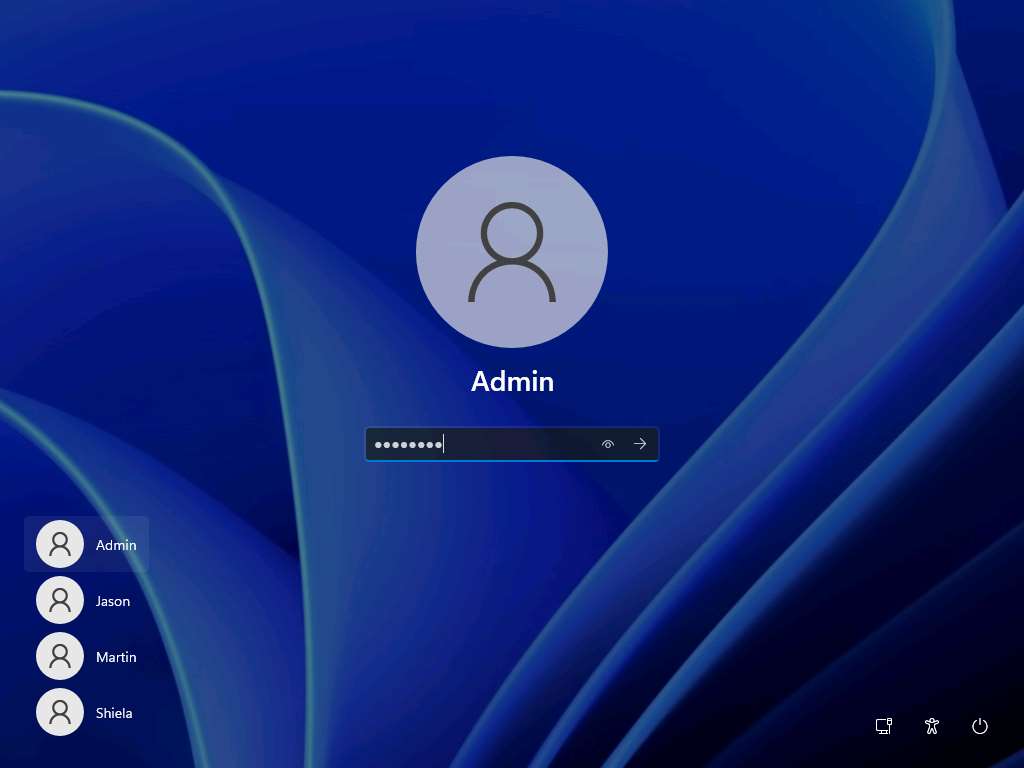
Windows 11
- Username: Admin
- Password: Pa$$w0rd
- Machine name: Windows11
User Accounts
| Username | Password | Account Type |
|---|---|---|
| Martin | apple | Standard |
| Jason | qwerty | Administrator |
| Shiela | test | Standard |
Network Settings
- IP address: 10.10.1.11
- Subnet mask: 255.255.255.0
- Default gateway: 10.10.1.2
- Preferred DNS server: 8.8.8.8
Additional things to remember…
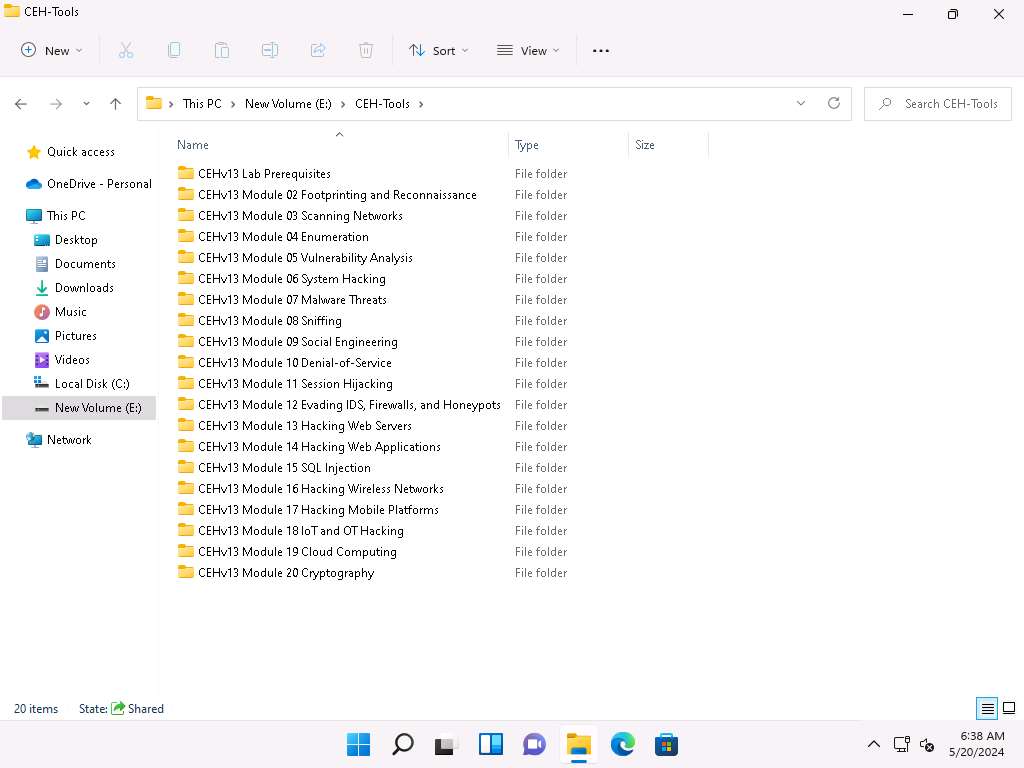
- You can find CEHv13 tool at E:\CEH-Tools location, as shown in the below screenshot
- Ensure that the Windows Defender Firewall is Off
- Ensure that Remote Desktop Connection is enabled
- Ensure that the password complexity is not set
Windows Server 2022
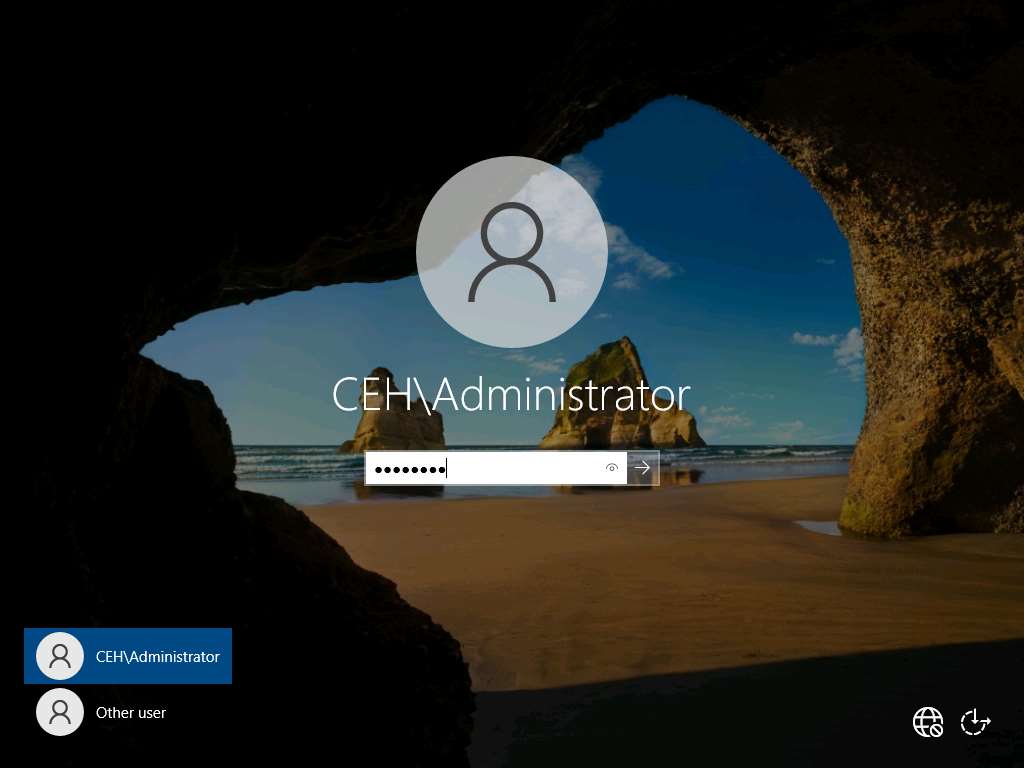
- Username: CEH\Administrator
- Password: Pa$$w0rd
- Machine name: Server2022
- Domain name: CEH.com
Active Directory Users
| Username | Password | Account Type |
|---|---|---|
| Jason M. | qwerty | Administrator |
| Martin J. | apple | Standard |
| Shiela D. | test | Standard |
| Mark | cupcake | Standard |
| SQL_srv | batman | Administrator |
| Joshua | cupcake | Standard |
| DC-Admin | advance! | Administrator |
Network Settings
- IP address: 10.10.1.22
- Subnet mask: 255.255.255.0
- Default gateway: 10.10.1.2
- Preferred DNS server: 8.8.8.8
Additional things to remember…
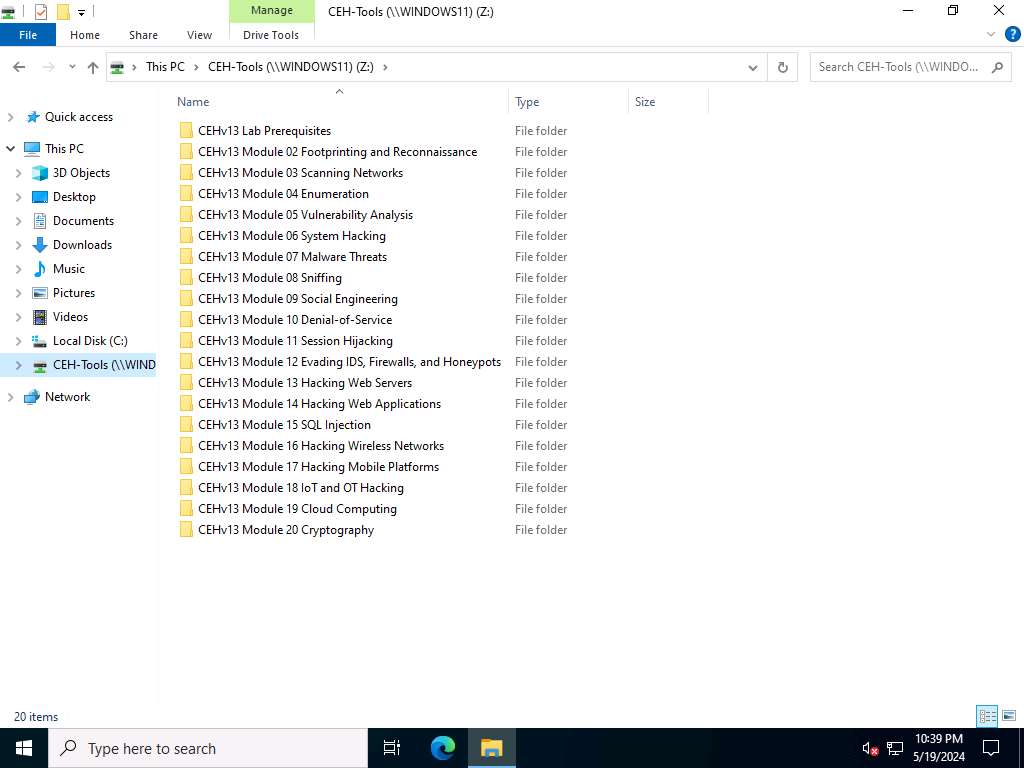
- You can find CEHv13 tool in the Z:\ drive, as shown in the below screenshot
- Ensure that the Windows Defender Firewall is Off
- Ensure that the Remote Desktop Connection is enabled
- Ensure that the password complexity is not set
- Configured WampServer and a WordPress Website (http://localhost:8080/DVWA/login.php with credentials admin/password)
Windows Server 2019
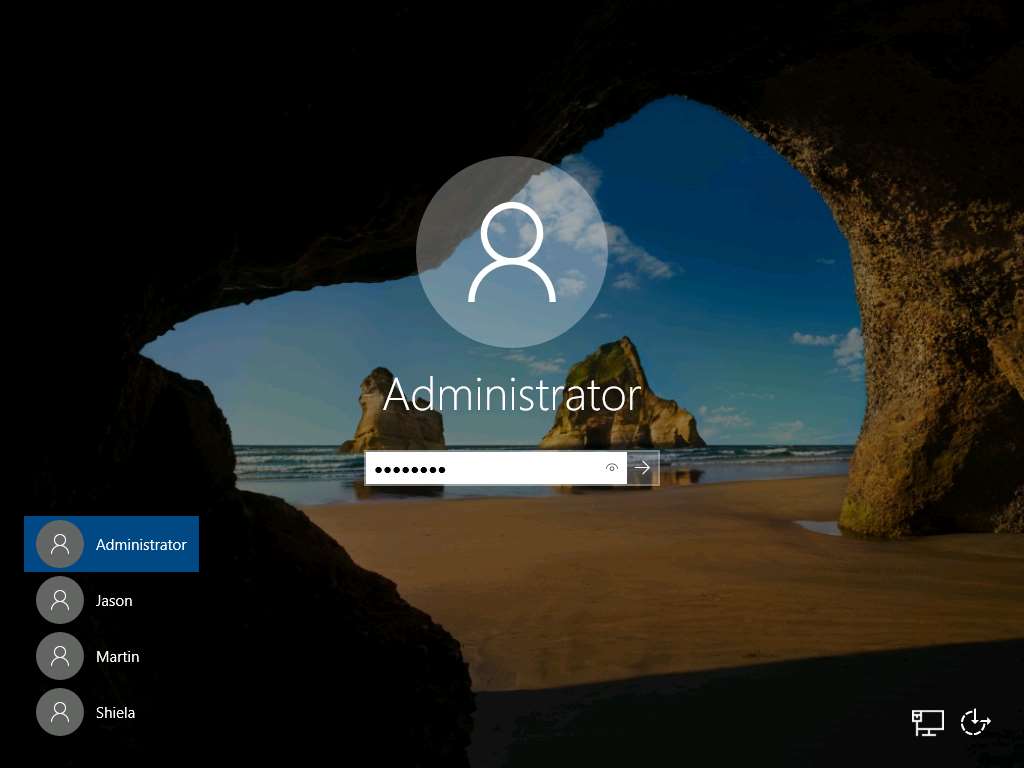
- Username: Administrator
- Password: Pa$$w0rd
- Machine name: Server2019
User Accounts
| Username | Password | Account Type |
|---|---|---|
| Martin | apple | Standard |
| Jason | qwerty | Administrator |
| Shiela | test | Standard |
Network Settings
- IP address: 10.10.1.19
- Subnet mask: 255.255.255.0
- Default gateway: 10.10.1.2
- Preferred DNS server: 8.8.8.8
Additional things to remember…
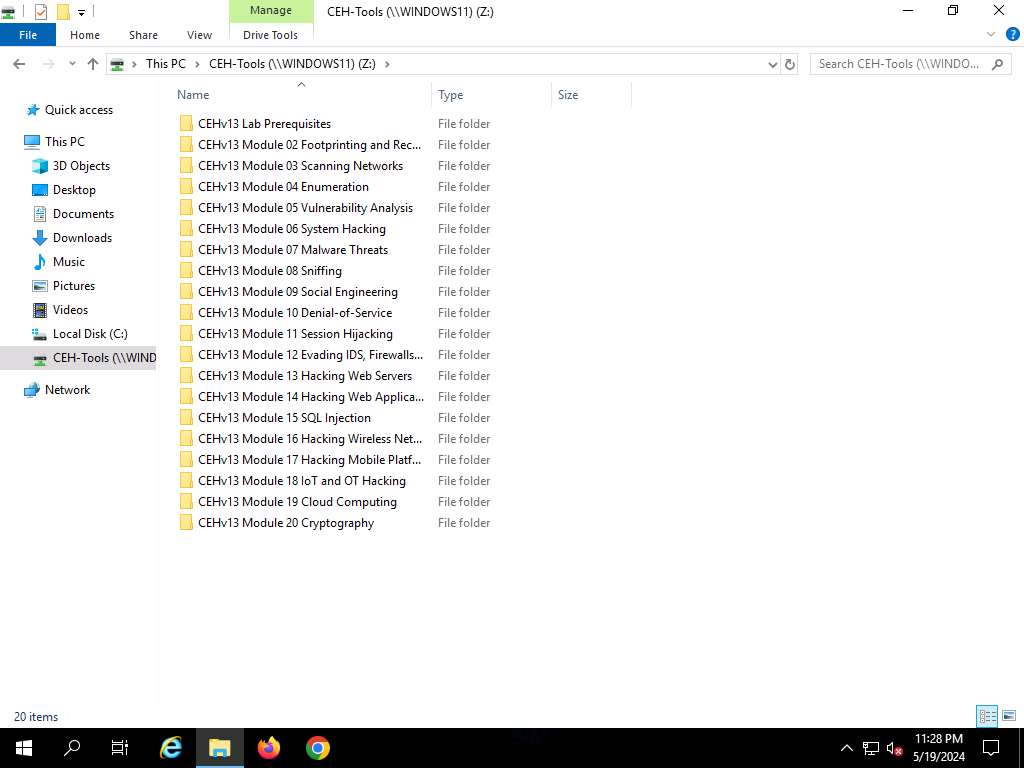
- You can find CEHv13 tool in the Z:\ drive, as shown in the below screenshot
- Ensure that the Windows Defender Firewall is Off
- Ensure that Remote Desktop Connection is enabled
- Ensure that the password complexity is not set
- Websites configured: http://www.goodshopping.com
 http://www.moviescope.com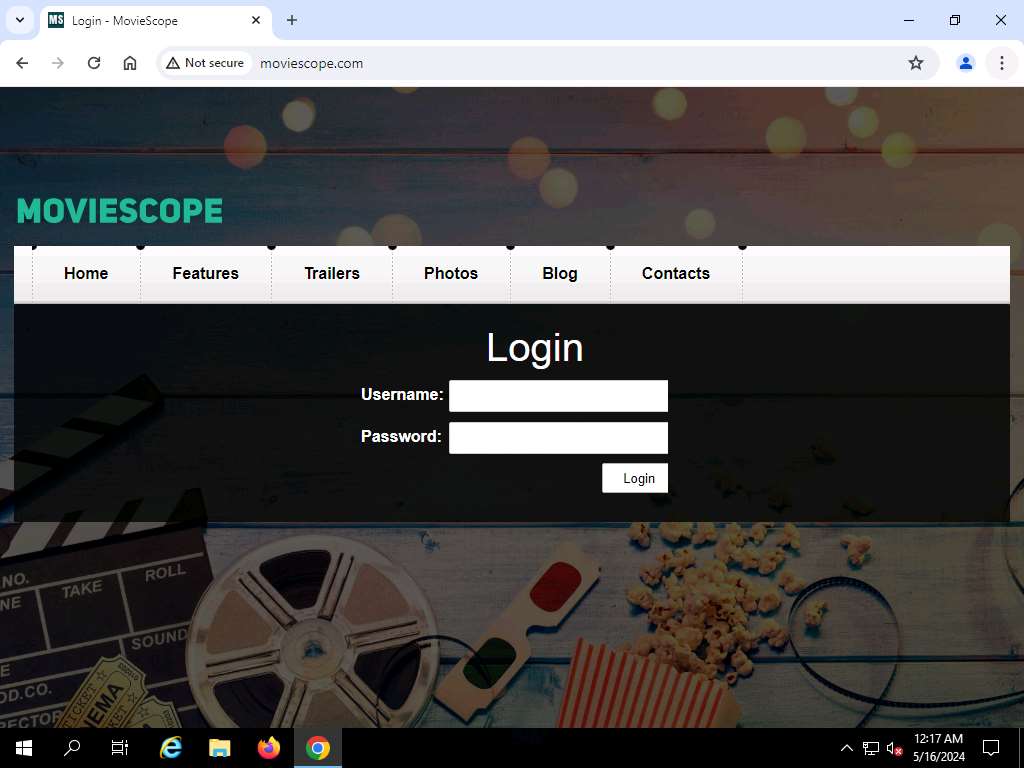
Windows 11 (AD)
- Username: Mark
- Password: cupcake
- Machine name: Windows11
Network Settings
- IP address: 10.10.1.40
- Subnet mask: 255.255.255.0
- Default gateway: 10.10.1.2
- Preferred DNS server: 10.10.1.22
Additional things to remember…
- Ensure that the Windows Defender Firewall is Off
- Ensure that Remote Desktop Connection is enabled
- Ensure that the password complexity is not set
Windows Server 2019 (AD)
- Username: SQL_srv
- Password: batman
- Machine name: Server2019

Network Settings
- IP address: 10.10.1.30
- Subnet mask: 255.255.255.0
- Default gateway: 10.10.1.2
- Preferred DNS server: 10.10.1.22
Additional things to remember…
- Ensure that the Windows Defender Firewall is Off
- Ensure that Remote Desktop Connection is enabled
- Ensure that the password complexity is not set
Parrot Security
- Username: attacker
- Password: toor
- Machine name: parrot
Network Settings
- IP address: 10.10.1.13
- Subnet mask: 255.255.255.0
- Default gateway: 10.10.1.2
- DNS server: 8.8.8.8
Ubuntu
- Username: Ubuntu
- Password: toor
- Machine name: ubuntu
Network Settings
- IP address: 10.10.1.9
- Subnet mask: 255.255.255.0
- Default gateway: 10.10.1.2
- DNS server: 8.8.8.8
Android
- Username: nil
- Password: nil

Network Settings
- IP address: 10.10.1.14
- Subnet mask: 255.255.255.0
- Default gateway: 10.10.1.2
- DNS server: 8.8.8.8
Instructions to Download your AI Activation Key
Notice: Third-Party Connected Apps and Paid Services
Introduction
The guiding principle of EC-Council Education Content and Labs is simple: We want to provide a safe environment to learn, practice, and assess cybersecurity skills that directly translate to job-ready skills. We believe in providing our students, educator partners, and professionals with real software and live experiences that behave like those in the “real world” because they are the actual tools and services used in the field, not simulations.
Third-Party and Internet-Connected Resources
To provide the most realistic learning experience, EC-Council may employ connections to live networks and services through its labs and lab platforms. While many software and service providers provide education use licenses, trials, or are Open Source, some require a live account with setup requirements and agreements you must review and consent to in order to participate in and/or complete the exercises in our Labs.
Subscription Fees and/or License Fees
While EC-Council will never ask you for payment details or sensitive information during our course of learning, some of our Live Labs connect to third-party services such as Amazon AWS, Google Cloud Platform, Microsoft Azure, etc. Many of these service providers allow you to sign up for free-tier usage, Education Accounts, or provide promotional credits for trials. However, be aware that signing up for third-party services may incur expenses related to the use of their services. Our labs using public cloud services can be completed without any additional charges unless explicitly marked, but you are ultimately responsible for any services you may intentionally or unintentionally sign up for when connected to those platforms.
Alternatives
If you are unable to secure an Education/Student cloud account or are not comfortable creating a live account in these public cloud services, EC-Council provides comprehensive Lab Guides that include complete instruction sets with screenshots (images) of each step. Though you won’t be creating an account or performing the live configurations with this method, you will still receive adequate exposure to the platforms, configuration steps, techniques, and knowledge elements required for you to prepare for certification or grasp the knowledge conveyed in the program.
The Certified Ethical Hacker (CEH) labs use an innovative AI tool called ShellGPT. Powered by advanced natural language processing, ShellGPT enables users to interact with command-line interfaces intuitively. Whether probing network vulnerabilities or executing penetration tests, ShellGPT responds to commands in real-time, streamlining tasks and enhancing productivity. Its adaptive capabilities facilitate seamless navigation through complex systems, empowering learners to explore diverse cybersecurity scenarios with ease. AI-powered ethical hacking significantly enhances both efficiency and precision in ethical hacking engagements.
Please click the appropriate option below to view the instructions on how to obtain your AI activation key from your respective learning platform:
ASPEN Portal – EC-Council Accredited Training Center (ATC) Students
- Visit the ASPEN platform (https://aspen.eccouncil.org) and sign up or log in to your existing account.
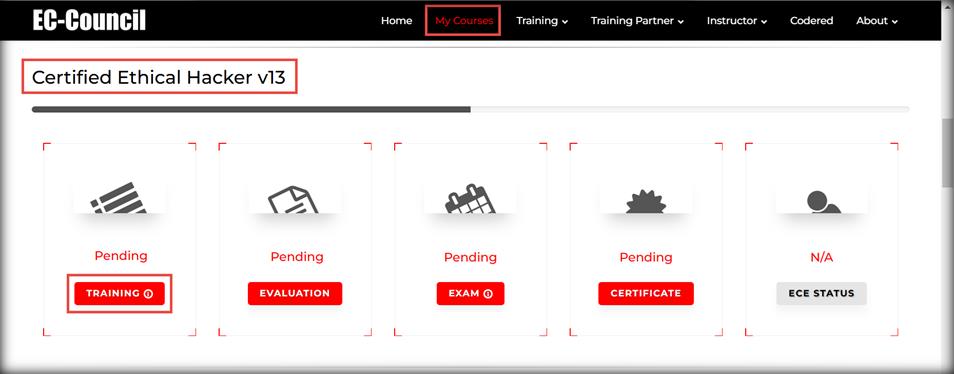
- Once logged in, click the My Courses tab at the top, and navigate to the My Courses section. You will see your courses listed under the My Courses section.
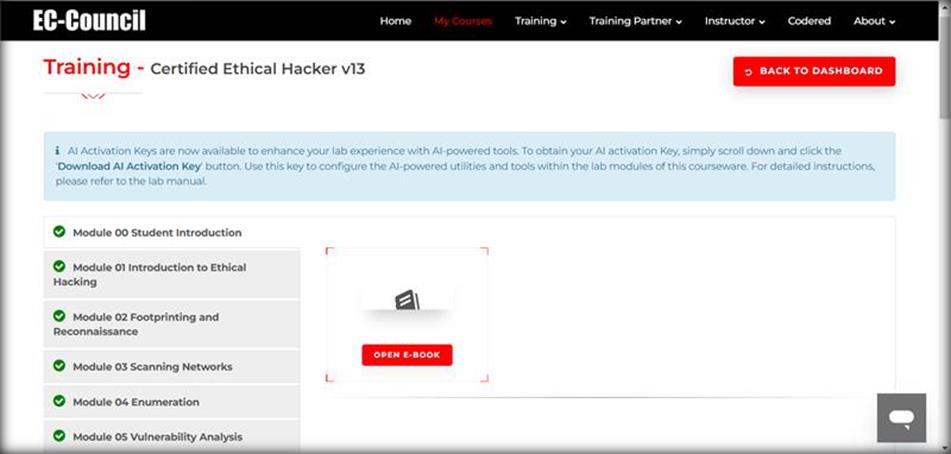
- Under the My Courses section, go to the Certified Ethical Hacker v13 course and click the TRAINING button under the course to access the e-Courseware, Lab Manuals, Tools, and AI Activation Key in the Training area.
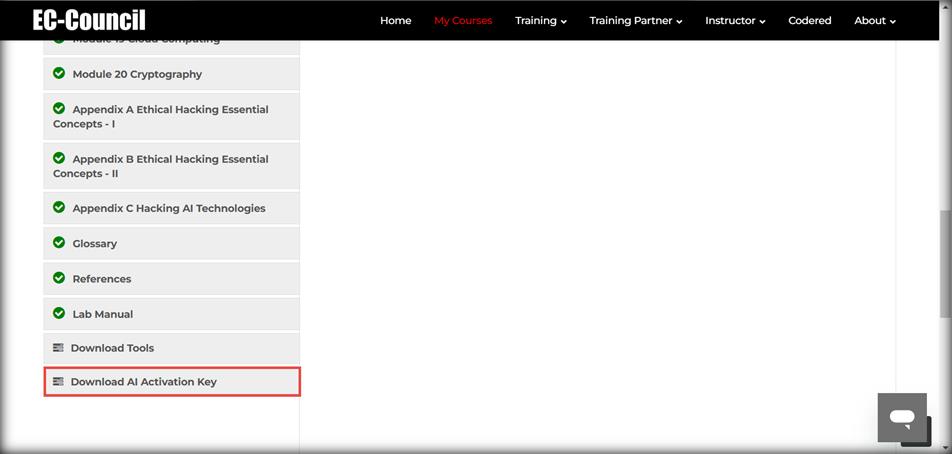
- On the Training page, scroll down and click Download AI Activation Key from the left pane.
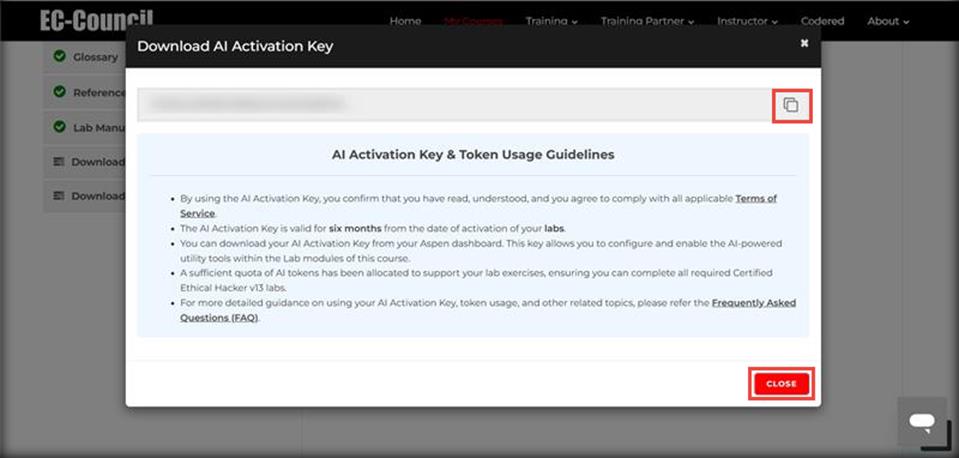
- Download AI Activation Key pop-up appears, click the Copy button to copy the key.
- Read the instructions carefully under AI Key & Token Usage Guidelines and save this key in a notepad. We will be using this key in each module for setting up ShellGPT.
Note: You can login to your ASPEN platform within the Parrot security VM and copy the key.
ASPEN Portal – EC-Council Academia Students
Hello Students,
As of August 1st, 2025, EC Council Academia Series lab resources for this course include an AI Activation key. This is available within the ASPEN portal post-redemption of an ASPEN code. The following instructions will guide you to creating an ASPEN account, redeeming your ASPEN code, and locating and activating your AI Activation key for use within this lab.
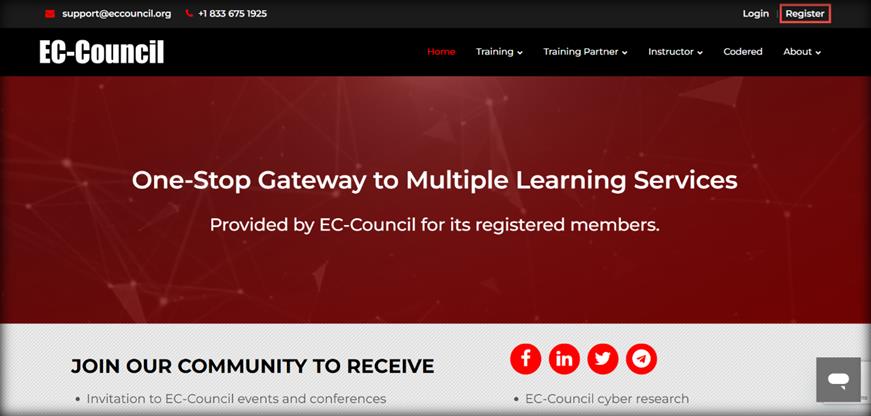
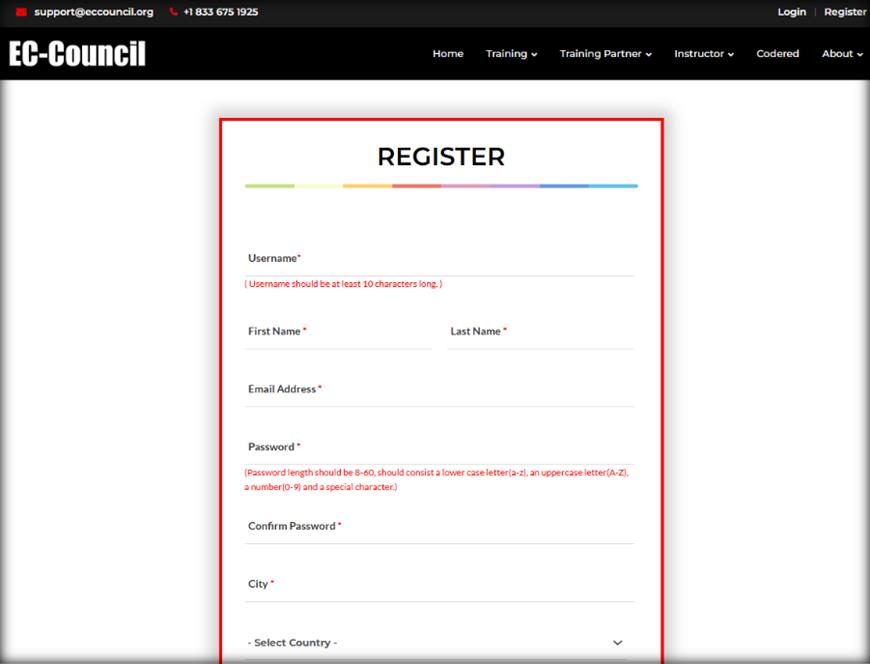
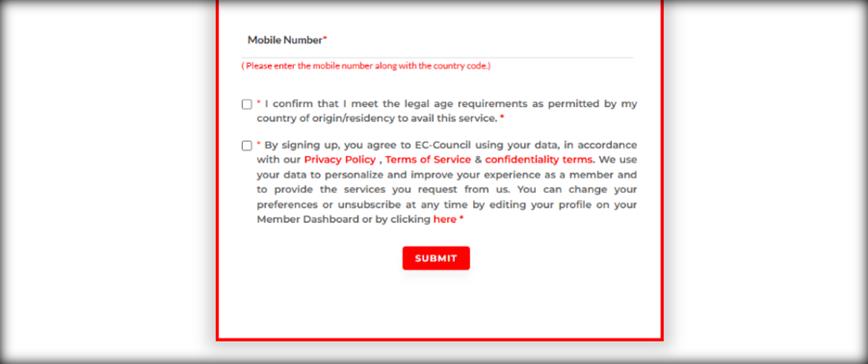
- Account RegistrationGo to https://aspen.eccouncil.org and create your account prior to redeeming your Subscription Code. If you already have an ASPEN account, please proceed to STEP 3. Click ‘Register’ to fill out the registration form. Once all required fields are entered properly, click on the ‘SUBMIT’ button.
- Verifying Your ASPEN AccountAfter registering, you will receive an email confirmation that requires you to verify your account. Follow the instructions in the email to validate and activate your EC-Council ASPEN account.
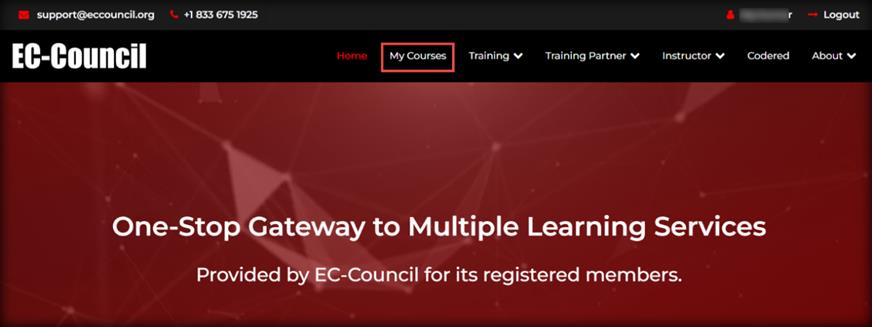
- Log In and Navigate to My CoursesLog in to your account with your username and password. Click on the ‘My Courses’ tab at the top of the page.
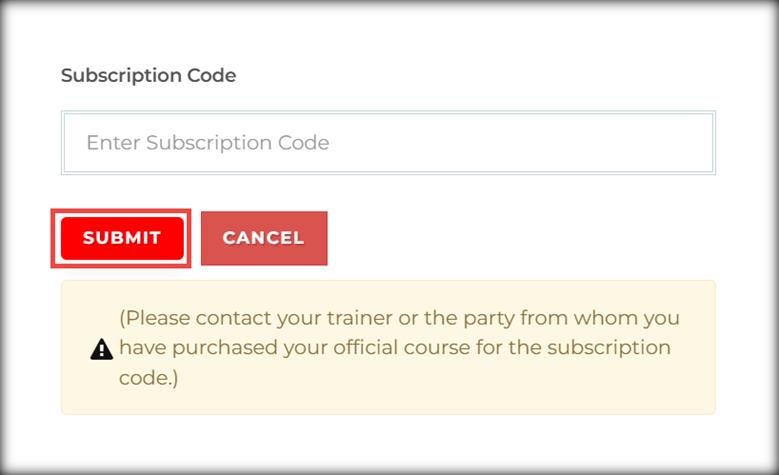
- Enter Your Subscription CodeClick on the ‘SUBMIT SUBSCRIPTION/DASHBOARD CODE’ button at the top right-hand side of the screen.
Enter your subscription code in the ‘Enter Subscription Code‘ field and click the ‘SUBMIT’ button. You will see your courses listed under the My Courses section.
- Download Your AI Activation KeyUnder the My Courses section, go to the CEHv13 – Complete Series (Volumes 1 through 4) course and click the TRAINING button under the course to access the AI Activation Key in the Training area.
On the Training page, scroll down and click Download AI Activation Key from the left pane.Download AI Activation Key pop-up appears, click the Copy button to copy the key.Read the instructions carefully under AI Activation Key & Token Usage Guidelines and save this key in a notepad. We will be using this key in each module for setting up ShellGPT.
Additional Information: For additional support, please email aspensupport@eccouncil.org. Note: You can login to your ASPEN platform within the Parrot security VM and copy the key.
iClass Portal
- Visit the iClass platform (https://iclass.eccouncil.org) and sign up or log in to your existing account.
- Once logged in, click the Dashboard from the right pane, and navigate to the REGISTERED COURSES section. You will see your courses listed under the REGISTERED COURSES section.
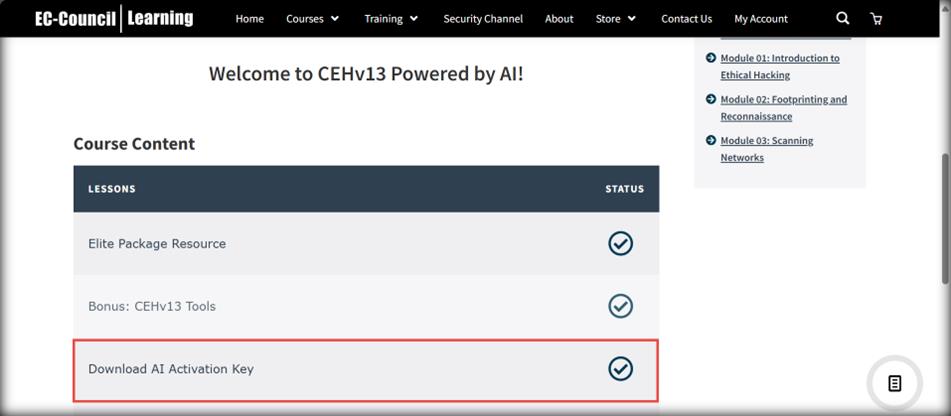
- Under the REGISTERED COURSES section, click the Certified Ethical Hacker (CEHv13) course to access the CEHv13 course content, such as e-Courseware, Tools, and AI Activation Key in the Course Content area.
- On the Course Content page, click Download AI Activation Key available under the LESSONS.
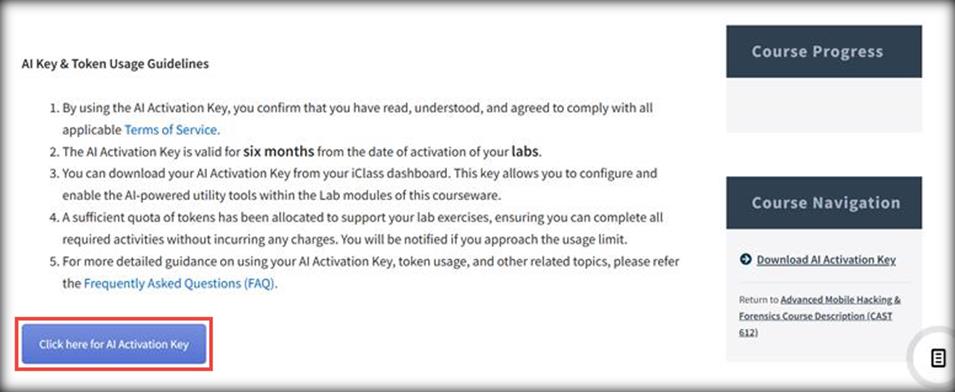
- Download AI Activation Key page appears. Read the instructions carefully under AI Key & Token Usage Guidelines and click the Click here for AI Activation Key button.
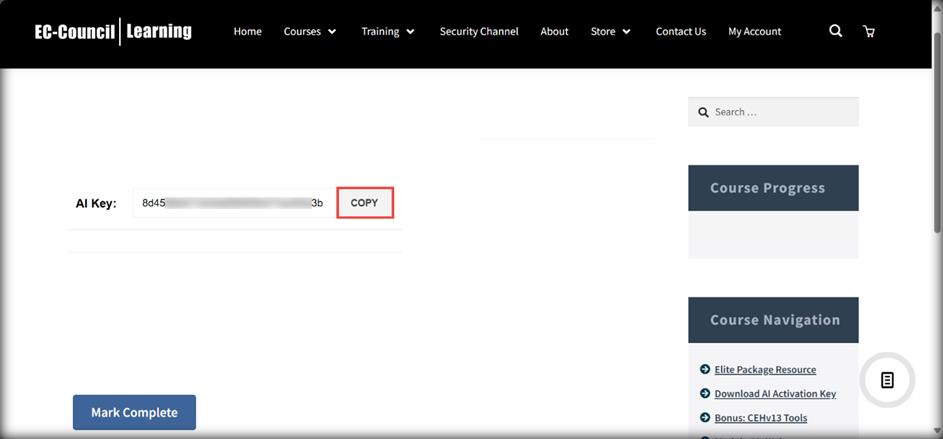
- Click the COPY button to copy the key and save this key in a notepad. We will be using this key in each module for setting up ShellGPT.
Note: You can login to your iclass platform within the Parrot security VM and copy the key.
EC-Council Learning (ECL) Portal
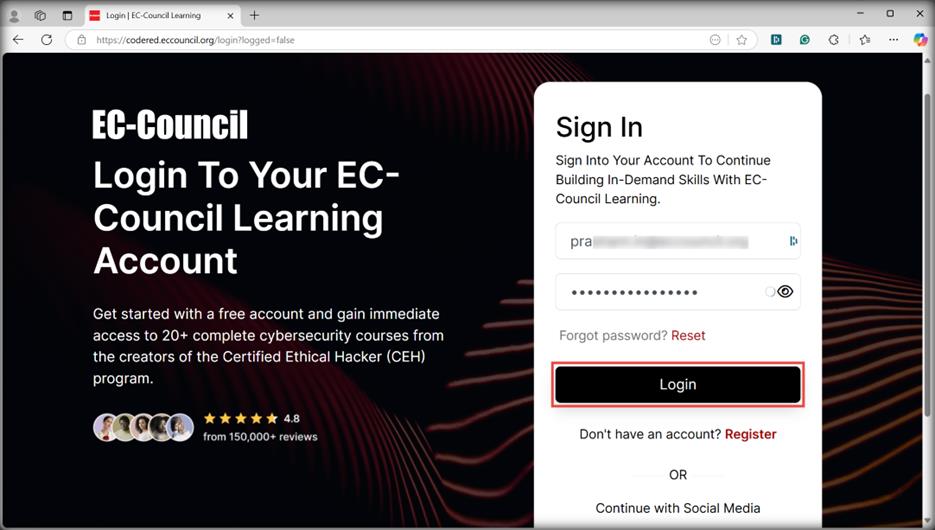
- Visit the EC-Council Learning (ECL) platform (https://codered.eccouncil.org) and register or log in to your existing account.
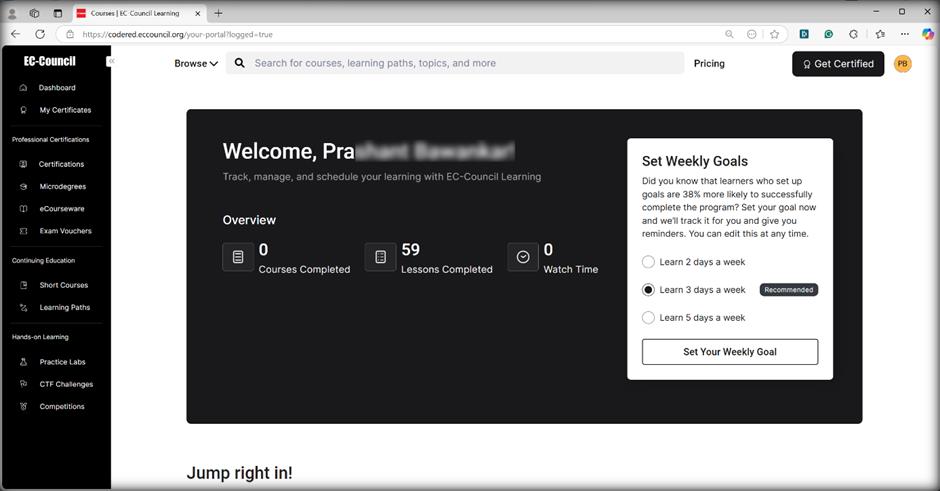
- After logging in, you will be directed to the EC-Council Learning Dashboard.
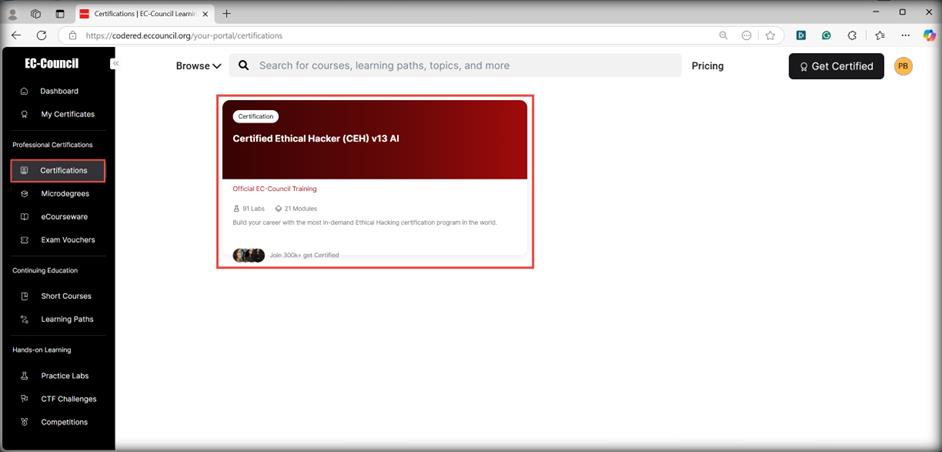
- In the left pane, navigate to the Professional Certifications section and click on the Certifications tab to view all your enrolled courses.
- From the right pane, click the Certified Ethical Hacker (CEH) v13 AI certification program to access its product page.
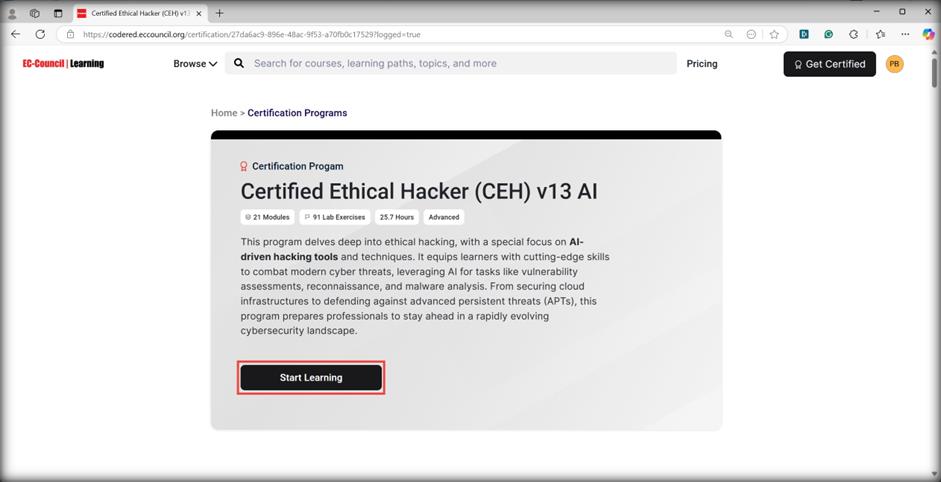
- On the Certification Programs page, click the Start Learning button under the Certified Ethical Hacker (CEH) v13 AI certification program to begin the CEHv13 course.
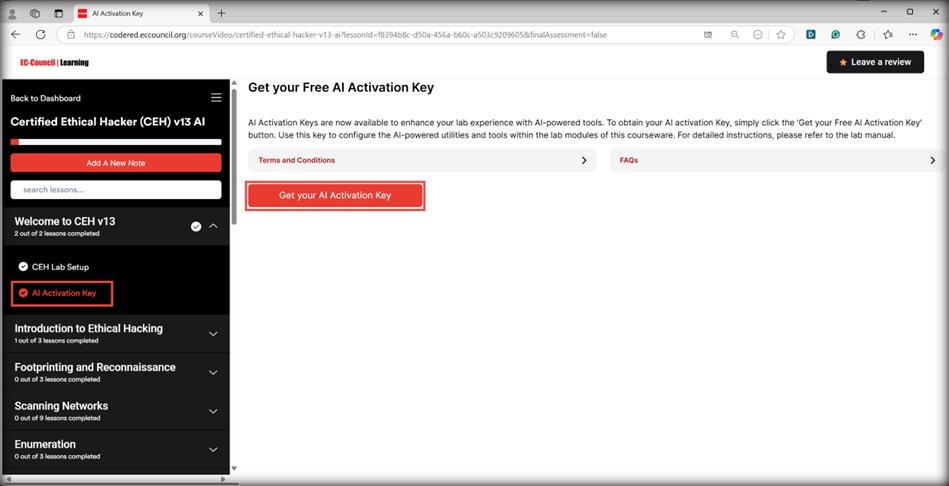
- The CEHv13 course includes video lectures, an eBook, virtual labs, and an AI Activation Key. To access the key, on the Certified Ethical Hacker (CEH) v13 AI certification page, expand the Welcome to CEH v13 section from the left pane, and click AI Activation Key.
- The Get your Free AI Activation Key page will appear. Carefully read the instructions under the Terms and Conditions tab, then click the Get your AI Activation Key button.
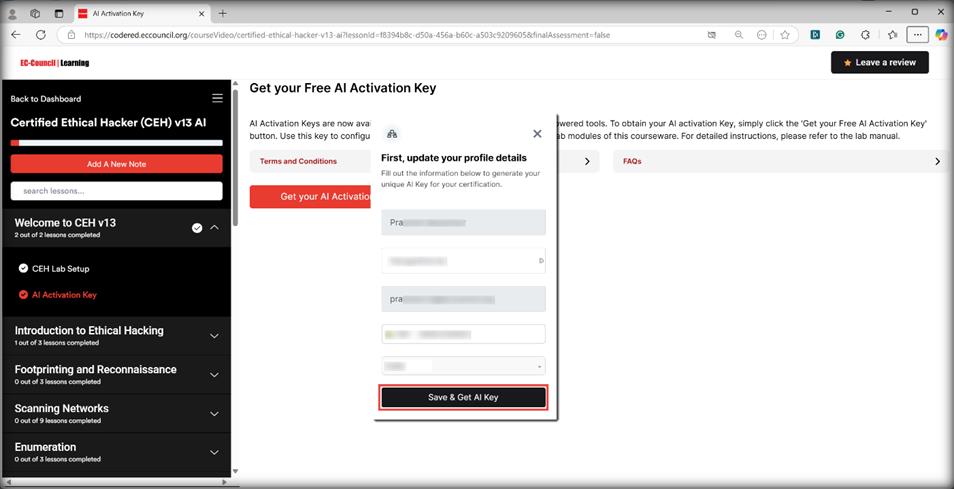
- If your profile is not up to date, a pop-up window will appear prompting you to update it. Enter your details accurately and click the Save & Get AI Key button to receive your AI Activation Key.
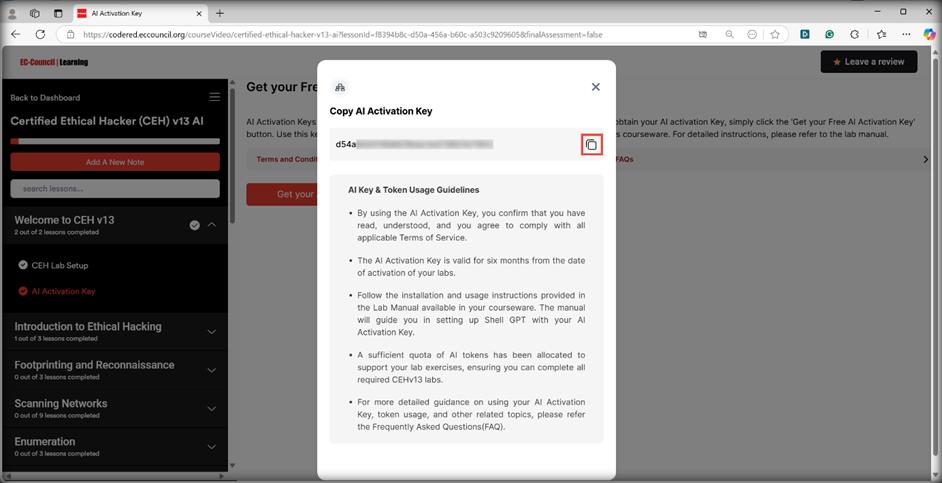
- The Copy AI Activation Key pop-up window appears. Read the instructions carefully under AI Key & Token Usage Guidelines and click the COPY button to copy the key and save the copied key in a notepad. We will be using this key in each module for setting up ShellGPT.
Note: You can login to your ECL platform within the Parrot security VM and copy the key.
ECCU LMS
- You will receive the AI Activation Key at your registered email address. Please look out for an email from your ECCU advisor.Note: You can login to your ECCU LMS platform within the Parrot security VM and copy the key.


Trả lời